2727 Coworking Article
Coworking with Monitors Montreal: Laptop Checklist
A 2026 acceptance sheet for coworking with monitors in Montreal: verify laptop display limits, ports, docks, power and reservation, plus a CAD cost worksheet with 14.975% tax.
Summary
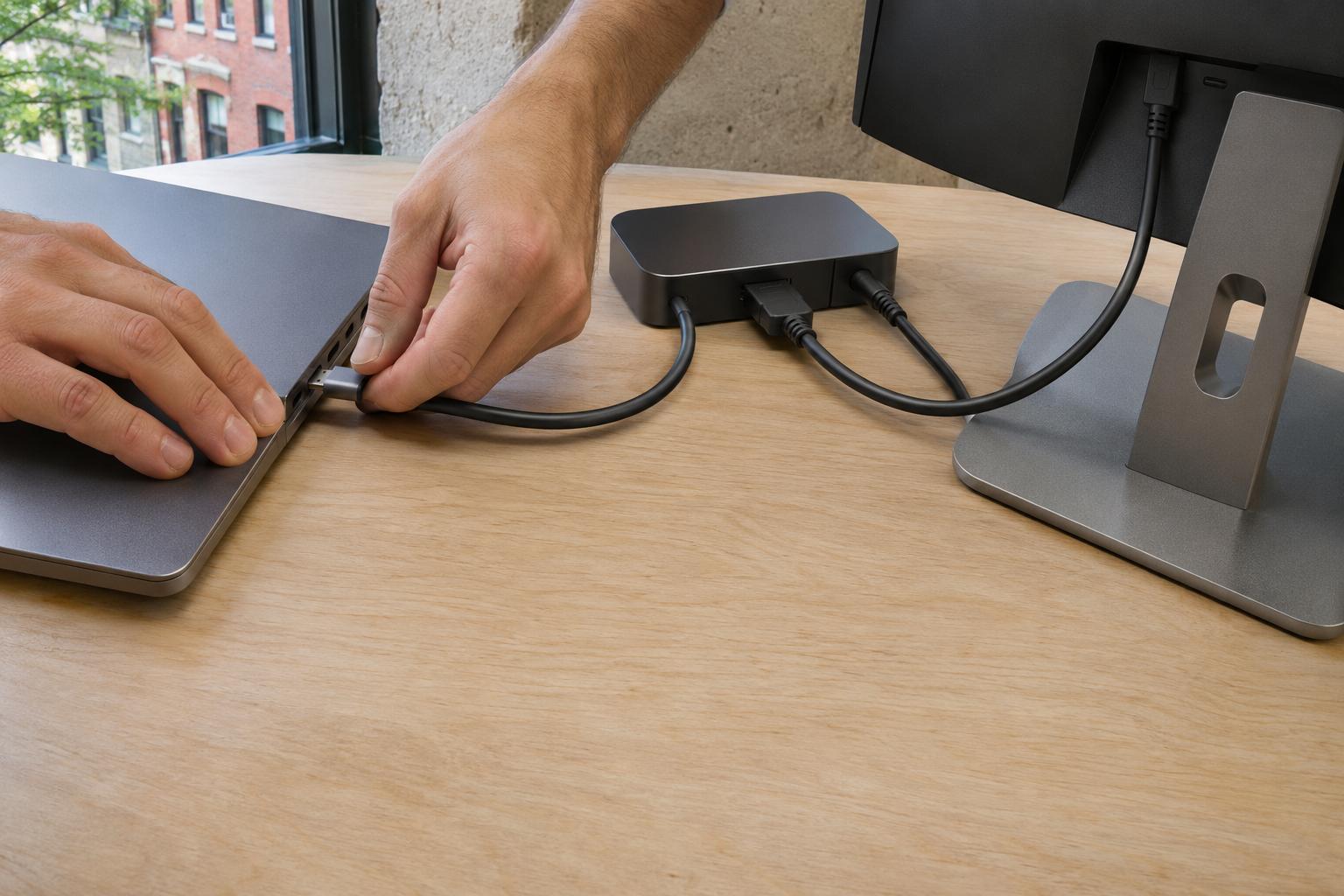
- 01Before paying, check the exact laptop model's external display limit and confirm that the port carries video. Verify the cable or dock, charging wattage and any required driver.
- 02Ask the operator to confirm the screen model, inputs and reservation for your visit date in writing. Keep unverified fields marked unknown on the acceptance sheet.
- 03On site, test detection, extend mode, resolution, refresh rate, charging and wake or reconnect. Adjust the monitor's height, distance and angle to fit the user.
- 04If you plan to leave equipment overnight, ask in writing where it will be stored, who can access it and what responsibility the operator accepts. Check your own coverage.
- 05Track equipment cash, the desk premium and setup time separately. Use your own equipment quotes and measure setup and pack-down per visit.
Inside this article
- 01Executive Summary
- 02Introduction and Background
- 03Key Compatibility Checks Before You Pay
- 04What Montreal Operators Publish About Monitors and Reservations
- 05Implementation Considerations: The Acceptance Sheet and On-Site Test
- 06Storage, Liability and Security Conditions
- 07Data Analysis and Evidence
- 08Implications and Future Directions
- 09Frequently Asked Questions (FAQs)
- 10Conclusion
Executive Summary
A monitor-equipped desk in Montreal is only useful if the whole chain works for a specific laptop: laptop model and operating system, video port, cable or dock, power supply, screen specification, and a desk that is actually reserved for the visit. Manufacturers state plainly that none of these can be assumed from a connector shape or a furniture label. Apple says the number of external displays "depends on the Mac model" [1], and Microsoft notes that "not all USB-C ports are created equal" [2]. Dell adds that "not every USB-C port supports video output" [3].
The evidence also shows the limits of what operators publish. Of the seven Montreal and national operators whose own pages were read on 21 November 2026, none stated a monitor model, port type, resolution or desk-level reservation guarantee in the text reviewed. Clarkwerk lists ergonomic furniture and filing cabinets among its services [4]; Regus Montréal lists ergonomic chairs and desks [5]; Spaces lists ergonomic furniture [6]. Montréal CoWork is the only page reviewed that mentions a screen, offering "rangement de votre écran" (storage for your screen) as an option on a flex desk [7] and "your desk, your screen, your storage" on a dedicated desk, without saying who supplies the screen.
The practical response is an acceptance sheet: a one-page record, completed before payment, that names the laptop, the display count it supports, the cable and dock, the screen specification, the reservation commitment and the storage terms, with each field marked pass, fail, untested or unknown. This report supplies a blank sheet, a clearly labelled hypothetical sample, and a transparent cost worksheet. In the hypothetical example, a purchased kit of one 27-inch monitor (CAD $239.99), one dock (CAD $299.99) and one adapter (CAD $54.99) totals $594.97 before tax [8] [9] [10], or about $684.07 with Quebec's combined 14.975% sales tax if the displayed prices exclude tax [11]. Allocated over 24 months, that is $28.50 per month, kept separate from desk rent. These are prices as displayed on 21 November 2026, some on pages with promotional banners, and they may change; the pricing kit is an independent illustration and is not matched to the laptop and screen in the sample sheet.
Ergonomic fit is a second, separate test. The Canadian Centre for Occupational Health and Safety (CCOHS) calls ergonomics "not a product but a process" [12], and suggests an arm's length as a starting distance for the screen [13]. Insurance, storage and security conditions complete the checklist. Public data cannot yet show how many Montreal desks guarantee a reservable screen; those cells remain "unknown" until an operator confirms them in writing.
Introduction and Background
Remote and hybrid work has left a large group of Montreal workers choosing between a home desk, a café and a shared workspace. Statistics Canada reported that in May 2024, 20.6% of employed people in the Montréal census metropolitan area mostly worked from home [14], and nationally the share working exclusively from home was still decreasing in May 2026 [15]. For a designer, developer or analyst who works from a shared workspace some days a week, the question is rarely "is there Wi-Fi?" It is "will my second screen work on the day I pay for?"
This report examines that narrow question. It does not repeat the broader economics of hot desks versus dedicated desks, which plan-comparison guides already cover (see the publisher's hot desk, dedicated desk and private office guide). Instead it builds a reusable device-chain checklist. The publisher, 2727 Coworking, is itself a Montreal provider of desks and private offices, so it appears as a row in the operator matrix in Table 1 on the same terms as the others; its own pages are not used as evidence in this report.
Three terminology notes help when speaking with Montreal operators in either language. The Office québécois de la langue française (OQLF) defines a "station d'accueil" as a base with expansion connectors into which a laptop can be inserted [16], which is the English "docking station". It accepts "double écran" and "affichage sur deux moniteurs" for a two-display setup [17]. And it defines a "poste de travail" as a space organized and equipped so that a person can carry out professional activity [18], a useful phrase because it implies the equipment is part of the definition of a workstation, not an afterthought.
The evidence base has deliberate limits. Operator facts are limited to what each operator's own public page said on 21 November 2026, and an absence of a monitor mention is recorded as "not stated", never as "not offered". No field tests were run for this report; the sample sheet below is a labelled hypothetical. Prices and display limits change, so every figure is anchored to the date the source was read.
Key Compatibility Checks Before You Pay
The device chain has five links. A failure at any one link makes the others irrelevant, which is why a photo of a monitor on a desk, or a listing that says "USB-C desk", cannot settle the question.
Check 1: Laptop Model and Operating System Display Limits
The first link is the laptop itself. Apple states that "Mac computers support one or more external displays, depending on the Mac model" [1], and advises connecting the display with the highest resolution first [1]. Current published limits differ sharply by model:
- MacBook Air with M4 or M5 chip: supports two external displays, up to 6K at 60Hz or 4K at 144Hz each [19]; a single display can reach 5K at 120Hz [19]. Closing the lid does not raise the display count [19].
- MacBook Neo: Apple lists support for one external display in addition to the built-in display [20].
- MacBook Pro with M5 chip: Apple's page states support for up to two displays simultaneously [21].
- MacBook Air and MacBook Pro with M3 chip: two external displays are possible when the lid is closed [22], and Apple lists an external keyboard and mouse or trackpad as a requirement [22].
The consequence for a coworking visit is concrete. A user whose laptop model supports only one external display cannot use a two-monitor desk as advertised, regardless of what is on the desk. A user whose model needs the lid closed for the second display also needs an external keyboard and pointing device, which the desk may or may not supply.
On the Windows side, there is no single published limit. Microsoft's guidance is that when one external monitor works but several do not, the laptop's display adapter may not support more than one monitor, and the laptop manufacturer should be asked [23]. Intel notes that processor graphics set a maximum display count and that "some manufacturers may restrict systems" [24]. Dell's multi-monitor article describes up to two monitors as a general expectation "depending on the computer specifications" [25]. The practical rule: find the maker's specification page for the exact model number, not the product family.
Check 2: Port, Cable and Video Mode
The second link is the physical port. Microsoft's USB team says a USB-C port's appearance does not show whether it carries video [2]. Dell's dock guide says the same, and tells users to look for a DisplayPort icon, a lightning bolt or a power icon [3]; its FAQ adds that ports supporting DisplayPort carry a DP logo near the connector [26]. HP likewise treats a lightning-bolt icon on a USB-C port as the sign of Thunderbolt support [27].
Cables and adapters add a second layer. Apple says that a USB-C or Thunderbolt adapter used for video must support DisplayPort Alt Mode, Thunderbolt 3 or Thunderbolt 4 [28], and that a Mac with a built-in HDMI port can connect to an HDMI display without an adapter [28]. For very high-bandwidth modes, Apple recommends an Ultra High Speed 48 Gbps HDMI cable [29] and states that adapters are not supported for certain 8K and 240Hz modes [29]. The HDMI Licensing Administrator describes the Ultra High Speed cable as applicable for configurations up to 48Gbps [30], and notes that fixed-rate link signalling is needed for uncompressed resolutions above 4K at 60Hz [30]. VESA says its certified DP80 cables support the UHBR20 link rate [31] and that DisplayPort 2.1 covers DisplayPort Alt Mode over USB Type-C [31].
For most office users at 1080p or 4K at 60Hz, these high-bandwidth details matter less than the simpler question: does this laptop port output video at all, and is the cable on the desk the one that the port needs? Apple adds a diagnostic tip worth copying into the sheet: when a display stays dark or shows low resolution, connect it to a port directly on the Mac rather than through a hub or dock [32].
Check 3: Dock, Power Delivery and Drivers
The third link is the dock or adapter and its power. Apple says a Mac laptop that charges over USB-C can charge from any USB-C adapter or display supporting USB Power Delivery [33], and lists model-specific adapter sizes, for example a 140W adapter for the 16-inch MacBook Pro [33] and 20W for MacBook Neo [33]. Apple's fast-charge list for the MacBook Air includes a third-party display delivering 85W over Thunderbolt 3 or USB-C [34]. Dell warns that if the dock's power adapter does not meet the laptop's requirements, the laptop "will not charge at full speed, or may not charge at all" [3]. The USB Implementers Forum notes that USB Power Delivery 3.1 raised the maximum from 100W to 240W over a full-featured USB Type-C cable [35], which means that a desk cable's rating also matters.
Docks differ in how they send video. Dell states that its USB-C docks work with any laptop whose USB-C port supports DisplayPort Alternate Mode, including non-Dell laptops [3], but that its universal docks require DisplayLink software to drive monitors [3]. That is a driver installation, and on a managed corporate laptop a visitor may lack permission to install it. Dock display counts vary: a Lenovo ThinkPad dock page lists dual 3840 x 2160 at 60Hz [36], a Lenovo travel dock supports dual 4K displays with up to 100W power delivery [37], and HP says its Thunderbolt 4 dock can drive up to three external displays plus the laptop screen, or four external displays, depending on the laptop [27]. Intel notes that Thunderbolt 5 doubles the minimum bandwidth requirement from 40 to 80 Gbps over Thunderbolt 4 [38], so a dock's label should be read against the laptop's own port.
Check 4: Screen Resolution, Refresh Rate and Mirroring Versus Extending
The fourth link is what the user sees. In macOS, the display settings can mirror the desktop on each display [39], and the mirror and extend options appear only when an external display is connected [39]. In Windows, extend spreads the desktop across multiple screens [40]. A user who needs two independent workspaces must confirm "extend" works on the specific combination, not mirror only.
Refresh rate and resolution interact. Microsoft warns that selecting certain refresh rates changes the display resolution [41], and Windows 11's Dynamic Refresh Rate requires a display with variable refresh rate and at least 120 Hz [41]. For general office work, CCOHS says a 1080p resolution is usually sufficient, with higher resolutions suited to work needing more detail [42], so a designer needing colour-accurate 4K and a developer needing text clarity set different pass thresholds. The Quebec workplace health and safety body CNESST adds that when an external monitor is paired with a laptop screen, the two should have comparable resolution to reduce visual fatigue [43].
Check 5: Viewing Position, Stand and Peripherals
The fifth link is the person. CCOHS states that an arm's length is usually a good estimate of monitor distance [13], that the monitor can sit at about 15 degrees or slightly lower below the horizontal line of sight [13], and that if the distance is too great to read, increasing the font size is better than forcing a shorter distance [13]. OSHA gives a preferred eye-to-screen distance of 20 to 40 inches (50 to 100 cm) [44] and says the top line of the screen should be at or below eye level [44]. CNESST's office guidance puts the screen at about 70 cm, roughly an arm's length [45], and suggests placing it to the side of a window where possible [45].
For multi-monitor desks, CCOHS says that when several monitors are used equally they should be angled in a semi-circle [13], and that the most-used monitor should sit directly in front [13]. OSHA says monitors should not be placed more than 35 degrees to the left or right [44], and warns that tilting a monitor back may create glare from ceiling lighting [44]. A wide monitor may need to sit further away [13]. Laptop users face an added constraint: CNESST notes that the keyboard being attached to the screen creates additional postural constraints [43], and that an external keyboard lets the user move the laptop away and raise it to eye height [43].
CCOHS's purchasing guide lists laptop use and docking stations among the factors to account for when planning a workstation [12], and Canada's office ergonomics standard, CSA Z412:2024, applies to office workers in office workspaces and home offices [46]. None of these sources promise a health outcome from a particular desk; this report likewise makes no medical claims. A user with discomfort or a specific condition should consult a qualified ergonomics or health professional.
Of the seven Montreal and national operators whose own pages were read on 21 November 2026, none stated a monitor model, port type, resolution or desk-level reservation guarantee in the text reviewed.
What Montreal Operators Publish About Monitors and Reservations
Table 1 below summarizes what each operator's own public page said on 21 November 2026 about screens, reservation and storage. "Not stated" means the text reviewed did not mention the item; it does not mean the operator lacks it. Fees are shown as displayed on the page, in dollars, and exclude any tax unless noted; currency codes and tax treatment were not always shown on the page and require confirmation.
| Provider | Screen or monitor statement | Reservation statement | Storage statement | Listed fee (as displayed) | Compatibility evidence |
|---|---|---|---|---|---|
| Clarkwerk (Plateau) | Not stated. Services include ergonomic furniture, print and scan, and filing cabinets [4] | Hot desks let members "choose where you work each day" [4]; assigned desks are a dedicated workspace [4] | Filing cabinets listed as a service | Hot desk from $199/month; assigned desk from $249/month [4] | None: no model, port or resolution |
| Montréal CoWork (Saint-Denis) | Flex desk: screen storage is an option [7]. Dedicated desk: "your desk, your screen, your storage"; who supplies the screen is not stated | Flex desk offers unlimited access to open spaces [7] | Screen storage (flex, optional); storage included on dedicated desk [7] | Day pass from $30 + tax; flex desk from $275/month + tax; dedicated desk from $450/month + tax [7] | None: no model, port or resolution |
| Regus Montréal | Not stated for Montréal; ergonomic chairs and desks listed [5]. Its general dedicated-desk page lists an "extra monitor" among upgrades [47] | Nearly all centers offer a reserved dedicated desk [5]; hot desk booking in advance is recommended [5] | General dedicated-desk page lists lockable storage [47] | Day coworking from $49 per person per day [5] | None for a specific monitor |
| Spaces Montréal | Not stated; ergonomic furniture listed [6] | Booking ahead recommended for hot desks [6] | Not stated for desks | Cowork day pass from $49 per person per day [6] | None |
| WeWork Montréal | Not stated in the amenity list reviewed | Day passes and dedicated desks are booked on the website by location and plan [48] | Not stated | Day pass shown from C$54 per day [48] | None |
| Crew Collective and Café | Not stated | Floating desk page has a booking visit form; the option is described as flexible [49] | Not stated; main page lists open coworking, meeting rooms and private offices [50] | Floating desk shown at $300 monthly [49] | None |
| Espace Mile End | Not stated | Open-area membership includes a non-fixed desk [51] | Padlock locker included in open-area plan; closed offices include lockable filing cabinets [51] | Open area $275/month + tax; closed offices from $750/month + tax [51] | None |
| 2727 Coworking (publisher) | Not independently documented in this report; confirm per desk | Confirm in writing for the visit date | Confirm in writing | Confirm current quote | Use the same acceptance sheet |
Three findings stand out. First, no reviewed operator page published a monitor model, resolution, port type or dock model, so no operator comparison on display hardware is possible from public pages alone. Second, reservation language usually describes the desk class (flexible versus dedicated), not a specific workstation with a specific screen; Regus and Spaces recommend booking ahead for hot desks, while Regus describes its dedicated desks as reserved. Third, storage wording varies from a padlock locker to optional "screen storage", which suggests that some operators expect members to bring their own screen.
The Montréal CoWork wording illustrates why ambiguity matters. "Votre poste, votre écran, votre rangement" could mean the operator provides a screen or that the member keeps their own screen at the desk. The page does not resolve this. Likewise, Regus lists "extra monitor" as an upgrade on a general page [47], which suggests a monitor is an add-on there, but the page is not specific to Montréal. The correct response to ambiguity is a written question, not an assumption in either direction.
The OQLF's description of a coworking space ("espace de cotravail") as a place where users pay for access to equipment and services, including workstations [52], frames the question fairly: equipment is part of what a member pays for, so asking for it in writing is a normal request. The OQLF defines the arrangement as one where workers share a workplace frequented by different categories of workers [52].
- Regus and Spaces recommend booking ahead for hot desks. Regus describes its dedicated desks as reserved.
- Montréal CoWork mentions screens on flex and dedicated desks without saying who supplies them.
- Espace Mile End lists a padlock locker in its open-area plan.
- Ask whether you can reserve a specific desk with a monitor for your visit date.
- Confirm the screen's make, model, resolution, refresh rate and input ports.
- Ask where equipment stays overnight, who can access it and what responsibility the operator accepts.
Implementation Considerations: The Acceptance Sheet and On-Site Test
The linkable asset of this report is a laptop-to-workstation acceptance sheet. It has two parts: a pre-visit written confirmation and an on-site test. Fields that cannot be verified stay "unknown"; nothing is inferred.
The Blank Reusable Sheet
Copy the following fields into any note-taking tool. Each field takes a value and a status of pass, fail, untested or unknown, plus the evidence (a screenshot, a quote from the operator's email, or a manufacturer page).
- Visit date and operator: name, address, desk or room identifier, and the date the confirmation was received.
- Laptop: exact model number, operating system and version, and the maximum external displays from the manufacturer's page.
- Laptop video ports: each port, whether it carries video (DisplayPort icon, lightning bolt or HDMI), and the standard.
- Required setup: number of screens, minimum resolution, minimum refresh rate, colour or text clarity needs.
- Provided screen: make, model, size, resolution, refresh rate, input ports, and whether it is reservable for the visit date.
- Cable or dock supplied: type, port, rated wattage, driver needs, and whether it is left at the desk.
- Power: wattage the laptop needs, wattage the dock delivers, and whether a charger is supplied.
- Own equipment allowed: yes or no, with limits on size, mounting and overnight retention.
- Peripherals: keyboard, mouse, stand, riser, chair adjustment range.
- Storage: locker size, lock type, overnight retention, and who holds the key.
- Liability: the operator's written position and the user's own insurance cover.
- Fees: quoted rental, adapters, storage, delivery, tax treatment, refundable deposit, each on its own line.
- Test results: detection, extend versus mirror, resolution and refresh rate, wake and reconnect, with timestamps.
- Setup and pack-down minutes: measured, per visit.
A Completed Sample (Hypothetical Example)
Table 2 below shows how the sheet looks when filled in for an invented visit. It is a hypothetical example: no operator was tested, the operator is fictional, and the laptop and screen are illustrative. Display limits quoted for the laptop come from Apple's page; everything else is an example of how to record evidence.
| Item | Recorded value (Hypothetical Example) | Status | Evidence to attach |
|---|---|---|---|
| Laptop and OS | MacBook Air with M4 chip; two external displays supported, up to 4K at 144Hz each [19] | Pass | Apple model page |
| Displays required | One 27-inch 4K screen at 60Hz | Pass | User requirement |
| Port and cable | USB-C to DisplayPort cable supplied; adapter must be DisplayPort Alt Mode compliant | Unknown until operator confirms cable type | Operator email |
| Dock | Operator names a dock with DisplayLink drivers [3] | Fail if driver install is blocked on the managed laptop | Test on site |
| Power | Dock output 65W (example value); the laptop can charge from any USB-C adapter that supports USB Power Delivery, so the adapter wattage must be confirmed [33] | Unknown until the dock's rated output is confirmed | Dock label |
| Screen | 27-inch 4K panel, reserved for the visit date | Unknown: reservation not yet confirmed in writing | Booking confirmation |
| Detection and extend | Screen detected; extend mode works | Untested | Photo and timestamp |
| Viewing position | Top of screen at or below eye level [44]; arm's length starting distance [13] | Untested | Photo of setup |
| Storage | Locker for dock and cable; overnight retention not stated | Unknown | Operator email |
| Setup and pack-down | 12 minutes per visit (user-measured) | Recorded | Stopwatch note |
The sample shows that a sheet can contain several unknowns and still be useful. The goal is to decide before payment whether the unknowns are acceptable, not to force every field to pass.
On-Site Test Procedure
Run the test in this order, because earlier failures make later steps moot:
- Detection: connect the supplied cable or dock and confirm both the laptop and the screen register the connection.
- Mode: confirm extend (not only mirror) works [40].
- Resolution and refresh: set the required resolution and refresh rate and check text legibility; remember that some refresh rates change the resolution [41].
- Power: confirm the laptop shows charging and that the battery percentage rises under load [3].
- Wake and reconnect: close the lid, lock the screen, unplug and replug the cable, and check that the arrangement returns.
- Dual-screen combination: test the exact pair of screens, because limits apply to the combination of displays.
- Position: adjust height, distance and angle to the person, using the published ranges as a starting point rather than a rule [13].
- Pack-down: time the removal and record the minutes.
If the operator does not allow a test before purchase, a day pass or trial day is the lowest-cost way to run it. If the test fails, the failure is evidence that bringing a dock and cable, or paying for an assigned desk where personal equipment may stay, is justified.
- 01Detect the screen
Connect the supplied cable or dock and confirm both the laptop and the screen register the connection.
- 02Extend the desktop
Switch to extend mode and confirm you have independent workspaces across the screens.
- 03Set resolution and refresh rate
Set the required resolution and refresh rate, then check that text is legible.
- 04Check charging
Confirm that the laptop shows it is charging and that the battery percentage rises under load.
- 05Test wake and reconnect
Close the lid, lock the screen, unplug and reconnect the cable, then check that the display arrangement returns.
- 06Test the screen pair
If you need two external screens, test the exact pair you plan to use.
Storage, Liability and Security Conditions
Equipment retention is a contract question, not a hardware question. Written answers should cover where equipment is kept overnight, who has access, and what the operator's responsibility is.
Two Canadian sources offer general background on insurance. The Insurance Bureau of Canada, in general business-insurance guidance, says that most businesses need stock or equipment coverage [53]. Éducaloi, a Quebec legal-information nonprofit, notes that a landlord and tenant may carry insurance covering different things [54]. The IBC guidance is general business-insurance advice, and the Éducaloi page concerns landlords and tenants of commercial premises. Neither addresses coworking memberships, so they apply only by analogy. A member should ask the insurer whether portable equipment is covered off the home premises, and ask the operator what its own policy covers.
The Civil Code of Québec offers generic background on deposit of movable property: deposit is by gratuitous title but may be onerous where usage or agreement permits [55], and a paid depositary is liable for loss unless it proves superior force [55]. Whether a locker or storage arrangement is a deposit depends on its terms, so this is background only. A lawyer should review any contract where the value of stored equipment is significant.
Security hygiene belongs on the sheet as well. The Canadian Centre for Cyber Security advises not leaving devices unattended when working in a public location [56], being mindful of shoulder surfers trying to view a screen or keyboard [57], using only the charging equipment you brought [58], and avoiding using your own USB key in a foreign computer [58]. Get Cyber Safe suggests confirming the genuine Wi-Fi network name with someone from the hosting organisation [59]. For a desk with a provided dock, the charging-equipment advice is relevant: ask whether data-capable ports are shared, and carry your own power adapter if in doubt.
Data Analysis and Evidence
Equipment Cash and Setup Time Worksheet
The worksheet separates three costs that are often blended: desk rent, equipment cash and setup time. It follows the formulas below, using user inputs and labelled examples only; no productivity gain or monetary value for saved minutes is assumed.
- Monthly equipment cash = quoted rental or documented purchase allocation + adapters + storage + delivery.
- Setup hours per month = measured setup-plus-pack-down minutes x visits / 60.
- Desk premium = assigned or dedicated desk fee minus hot desk fee at the same operator, shown on its own line.
- Refundable deposits are listed separately and excluded from monthly cash.
Quebec applies GST at 5% on the selling price [11] and QST at 9.975% on the selling price excluding the GST [11], and these taxes apply to taxable supplies of property or services [60]. The combined rate on a taxable supply is therefore 14.975%. Whether a given rental or storage fee is taxable should be confirmed with the operator or Revenu Québec.
Table 3 below applies the formulas to a hypothetical purchased kit that is an independent pricing illustration (its monitor and dock are not matched to the 4K screen and DisplayLink dock in Table 2), using prices displayed on Canadian retailer and manufacturer pages on 21 November 2026. Some of those pages carried promotional banners, so the prices may not persist. The 24-month allocation is an assumption chosen for illustration, with no resale value.
| Line | Basis | Before tax (CAD) | With 14.975% tax (CAD) |
|---|---|---|---|
| 27-inch FHD monitor | Dell Canada page price [8] | 239.99 | 275.93 |
| Dock | Dell Pro Dock WD25Z page price [9] | 299.99 | 344.91 |
| USB-C to HDMI adapter | Dell Canada adapter page price [10] | 54.99 | 63.22 |
| Kit total | Sum of lines | 594.97 | 684.07 |
| Monthly allocation, 24 months | Total divided by 24 (Hypothetical Example) | 24.79 | 28.50 |
| Storage, delivery | User input; none in this example | 0.00 | 0.00 |
| Refundable deposit | Not applicable; excluded from cash | n/a | n/a |
The table shows that a full purchased kit costs about $28.50 per month under these assumptions, and a smaller kit (no second monitor, using the desk's screen) would cost less. A cheaper dock exists: a Staples Canada page listed a 14-in-1 USB-C dock at $139.99 on the same date [61], though a dock's price says nothing about whether it supports the laptop's display count. The figure is a hypothetical allocation, not a market benchmark, and each reader should substitute their own quotes and tax treatment.
Setup time is calculated separately. At 12 minutes of measured setup and pack-down per visit and 12 visits per month, the result is 144 minutes, or 2.4 hours per month (Hypothetical Example). The report assigns no dollar value to those hours, because the value depends on the user's work and cannot be benchmarked from public data.
Desk Premium Shown Separately
Listed prices from operator pages let the desk premium be computed without mixing it into equipment cost. On the pages read on 21 November 2026, Clarkwerk's assigned desk is listed from $249 per month against $199 for a hot desk, a difference of $50; Montréal CoWork's dedicated desk is listed from $450 against $275 for a flex desk (both plus tax), a difference of $175. These premiums buy a fixed desk and, in some cases, retained equipment. Neither page states that the premium includes a particular monitor. Compared with the hypothetical $28.50 monthly kit allocation, a premium is not automatically larger or smaller than the equipment cash it replaces; the comparison depends on whether the user already owns the equipment, so the plan-selection economics belong in the broader guides.
Context Figures
Statistics Canada's Labour Force Survey shows that in May 2024 the share of employed people mostly working from home in Quebec fell by 3.8 percentage points from the previous year [14], and that in the 2021 Census, 25.8% of Montréal-area workers reported working from home [62]. Nationally, the share working exclusively from home continued to decrease in May 2026 [15]. These figures describe the work-location context. They do not measure demand for monitor-equipped desks, and no public source reviewed quantifies how many Montreal desks have monitors.
The acceptance sheet in this report converts those gaps into written questions and a short on-site test. Its value lies in the fields marked unknown, because each unknown is a question to put to the operator before paying.
Implications and Future Directions
For members, the main implication is that an operator's written answer is the only reliable source for a screen guarantee. Public pages describe desk classes and amenities, not workstation configurations. The sheet turns that gap into a short email: laptop model, required screen setup, requested date, and the fields in the blank sheet.
For operators, the evidence suggests an opportunity to publish a simple equipment statement: the screen model and resolution, the cable or dock type, the power delivered, whether a desk can be reserved, and what may be left overnight. Apple, Microsoft and Dell all describe compatibility as model-dependent [23] [3], so a statement of what the desk supplies lets members check it against their own model before arrival. Operators that already publish storage details, such as Espace Mile End's included padlock locker [51], show the format is feasible.
For employers and workspace advisers, the standards bodies' emphasis on process matters. CCOHS describes ergonomics as a process rather than a product [12], and the CSA standard covers both office and home office settings [46]. A remote-work policy that reimburses a shared desk may reasonably ask for a completed acceptance sheet.
Several uncertainties remain. Local demand for monitor-equipped desks is unmeasured. Operator inventory changes without notice, so any listing should be re-confirmed for the visit date. New hardware generations change display limits: Apple's pages now cover M3, M4 and M5 chips and newer models with different counts [19], and the USB and HDMI specifications continue to evolve [35] [30]. A follow-up with dated operator quotes and actual on-site test results would turn this procedural checklist into a measured comparison; until then, comparison cells stay "unknown".
Frequently Asked Questions (FAQs)
Does a coworking space provide monitors?
Sometimes, but public pages rarely say. Of the operator pages reviewed on 21 November 2026, none stated a monitor model for hot desks. Montréal CoWork mentions screens on its flex and dedicated desks without saying who supplies them, and Regus's general page lists an extra monitor as an upgrade [47]. Ask in writing.
Is there a Montreal coworking space with external monitors?
The pages read do not allow a verified list. Ask each operator whether the specific desk you will use has a monitor, its model, and whether it can be reserved for your date.
What equipment does a Montreal coworking space usually list?
The pages reviewed list ergonomic furniture, printing, filing cabinets, lockers [51] and meeting rooms [50]. Equipment lists are amenity summaries, not compatibility statements.
How do I check laptop compatibility with an external monitor?
Find the maker's display specification for your exact model, such as Apple's per-model pages, and confirm the port carries video [3]. Then test detection, extend mode and refresh rate on site.
Does a USB-C docking station work at a coworking desk in Montreal?
Only if the laptop's USB-C port supports DisplayPort Alt Mode or Thunderbolt [3], the dock's power meets the laptop's needs [3], and any required driver can be installed [3].
Can I get a hot desk with a monitor in Montreal?
No page reviewed guarantees it. Regus and Spaces recommend booking hot desks in advance, but booking a desk class is not the same as booking a screen.
What should I bring to a coworking space?
Bring the laptop's own power adapter, the cable and adapter your port needs [28], a dock if the operator allows it, and a charging cable you trust [58]. Add an external keyboard and mouse if your laptop model needs the lid closed for a second display.
Do Montreal coworking spaces offer dual monitors?
None of the pages reviewed stated a dual-monitor desk. A two-screen setup also depends on the laptop: some Mac models support one external display [20] and others two.
Can I leave my own monitor at a desk?
That depends on the desk class and the contract. Montréal CoWork lists screen storage as an optional add-on to a flex desk. Ask about overnight retention and liability in writing, and check your own insurance [53].
Conclusion
A monitor in a photograph, a furniture label or a USB-C-shaped connector does not establish that a desk will work with a given laptop. Manufacturers describe display support as model-dependent [1], USB-C video as port-dependent [2], and ergonomics as a process that must be tested for the person [12]. Public operator pages in Montreal, as read on 21 November 2026, describe desk classes, ergonomic furniture and lockers, but none published a screen model, port type or desk-level reservation guarantee.
The acceptance sheet in this report converts those gaps into written questions and a short on-site test. Its value lies in the fields marked unknown, because each unknown is a question to put to the operator before paying. The cost worksheet keeps equipment cash, desk premium and setup time on separate lines, so that the broader hot-desk-versus-dedicated decision can be made with clear numbers rather than blended ones.
Readers can use the sheet with any operator, including the publisher, whose day pass and desks page is the place to request current terms. Whatever the operator, the safest practice is the same: get the screen, the reservation and the storage terms in writing for the visit date, run the test, and record the result.
External Sources (62)
About
2727 Coworking
Find a practical home for your work at 2727 Coworking in Montreal. Explore private offices, day workspaces and meeting rooms, plus business-address and virtual-mailbox services for your company.
2727 Coworking is a Montreal workspace and business-address provider. We serve people who need a place to focus, meet, run a small business or establish a professional mailing presence. Our website offers English and French information about workspace options and services, alongside educational resources for operating a business in Canada.
A workspace that fits the day
Our workspace options include private offices, day passes and desks, and a conference room. These formats help individuals and teams compare a dedicated office with more flexible ways to work or hold a meeting. Prospective members can explore the virtual tour, review current pricing and book a visit before choosing a workspace.
Business addresses and mail
2727 Coworking provides business-address and virtual-mailbox services. Our resources explain the documents and practical questions involved, including guidance for people outside Canada. Service eligibility, included features, availability and access arrangements should be confirmed on the applicable service page or with our team.
Resources for Canadian small businesses
We publish guides, research and planning tools about workspace decisions, business addresses and starting a business in Canada. Our incorporation research includes information for people inside Canada and abroad, with jurisdiction-specific material to help readers identify the next questions to investigate. These educational resources complement our workspace and address services; they are not individualized legal, tax or immigration advice.
Visit or contact 2727 Coworking
Explore private offices, day passes and desks, the conference room, business addresses and virtual mailboxes. Book a visit or contact the team to discuss your needs.
A business address alone does not establish tax residence, immigration status, banking approval or eligibility for a government program.
Disclaimer
This document is provided for informational purposes only. No representations or warranties are made regarding the accuracy, completeness, or reliability of its contents. Any use of this information is at your own risk. 2727 Coworking shall not be liable for any damages arising from the use of this document. This content was generated with assistance from artificial intelligence tools, which may contain errors or inaccuracies. Readers should verify critical information independently. All product names, trademarks, and registered trademarks mentioned are property of their respective owners and are used for identification purposes only. Use of these names does not imply endorsement. This document does not constitute professional or legal advice. For specific guidance related to your needs, please consult qualified professionals.